How to Compress a PDF Without Losing Quality
Why PDFs get huge, what compression actually changes, and the best free ways to shrink a PDF on Mac, Windows, and online — without turning your text to mush.

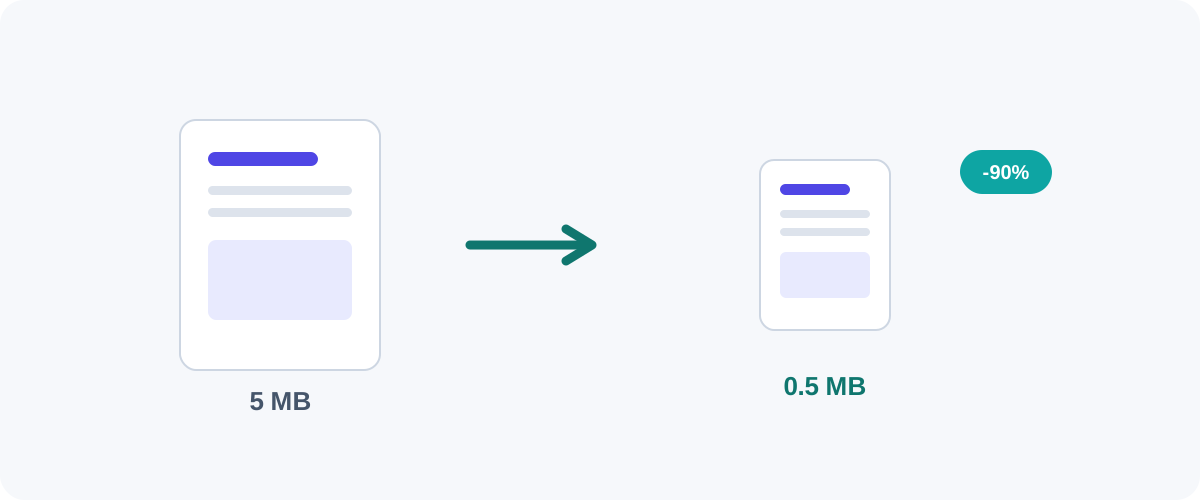
A PDF that won’t attach to an email is one of those small, recurring annoyances. The fix is compression — but “compress” gets thrown around as if it’s one button that always works. It isn’t. Knowing what compression changes is the difference between a crisp 2 MB file and a blurry mess. I’ve squeezed thousands of PDFs down for email and uploads, and here’s how I do it without wrecking quality.
What “compressing a PDF” actually changes
The single most useful thing to understand: most of a PDF’s size is images, not text. Text and vector graphics are tiny. A scanned page or an embedded photo is huge. So PDF compression is really image compression — it downsamples pictures to a lower resolution and re-encodes them more efficiently.
That tells you two things:
- A text-only PDF (an exported document, a report) is already small. Compressing it barely helps, and that’s fine.
- An image-heavy PDF (a scan, a portfolio, a slide deck) is where compression pays off — sometimes shrinking the file by 80–90%.
Pick a target, not a percentage
The setting that matters is the image resolution. 150 DPI looks great on screens and is plenty for most reading. 300 DPI is print quality. Dropping a 600 DPI scan to 150 DPI for emailing is invisible on a monitor but cuts the size enormously.
Method 1: On a Mac (Preview, offline)
macOS can compress PDFs without any download:
- Open the PDF in Preview.
- Choose File → Export.
- In the Quartz Filter dropdown, pick Reduce File Size.
- Save.
The catch: Apple’s built-in “Reduce File Size” filter is aggressive and can make images too soft. If the result looks rough, the better move is a custom Quartz filter with a gentler resolution (around 150 DPI). You create one in the Mac’s ColorSync Utility, and it then appears in that same Export dropdown. It’s a five-minute, one-time setup that gives you reliable, offline compression for good.
Method 2: On any platform (Ghostscript, offline + scriptable)
If you want repeatable, offline compression with real control, Ghostscript is the tool the pros quietly use:
gs -sDEVICE=pdfwrite -dCompatibilityLevel=1.5 \
   -dPDFSETTINGS=/ebook \
   -dNOPAUSE -dBATCH -dQUIET \
   -sOutputFile=compressed.pdf input.pdf
The key dial is -dPDFSETTINGS:
| Setting | Target | Use for |
|---|---|---|
/screen | ~72 DPI | Smallest; quick on-screen sharing |
/ebook | ~150 DPI | The sweet spot for email |
/printer | ~300 DPI | Keeps print quality |
/prepress | ~300 DPI+ | Professional printing |
/ebook is my default — it’s the best balance of size and clarity for anything that’ll be read on a screen.
Method 3: Online (fast, any device)
When I’m not at my own machine, a web compressor is the quickest route: open it, drop the PDF in, pick a compression level, download. It works the same on phones and Chromebooks. The trade-off is the usual one — your file is uploaded to a server.
Before you upload
For anything containing personal or business information, prefer an offline method or an in-browser tool that processes the file on your device. If you do use an online service, confirm it’s on HTTPS and deletes files automatically. The Utills compress tool is being built to run in your browser for exactly this reason.
When compression won’t help
- The PDF is already mostly text — there’s almost nothing to compress.
- The images are already low-resolution — squeezing them further just adds blur.
- You need print quality — don’t drop below 300 DPI.
In those cases, if the file is still too big to email, don’t fight it: upload it to cloud storage and share a link instead. (That’s also the right answer for very large files in general — see our guide on reducing PDF size for email.)
My quick rule of thumb
For everyday “make this emailable” jobs, I reach for /ebook in Ghostscript or a 150 DPI custom filter in Preview. Both are offline, repeatable, and keep text razor-sharp while knocking image-heavy PDFs down to a fraction of their size. Start there, check the result on screen, and only go lower if you truly need to.
Frequently asked questions
Does compressing a PDF reduce its quality?
It can, but it doesn't have to. Most of a PDF's size usually comes from embedded images, so compression works by downsampling and re-encoding those images. If you compress a text-only PDF there's little to gain and little to lose. For image-heavy PDFs, choosing a sensible target (around 150 DPI for screen reading) shrinks the file dramatically while still looking sharp on a monitor.
Why is my PDF so large in the first place?
Almost always because of images — especially scans and photos saved at full camera resolution. A single phone photo can be several megabytes, so a 10-page scanned document can easily hit 30–50 MB. Fonts, embedded thumbnails, and saved revision history add a little more.
What's a good target size for emailing a PDF?
Most email providers cap attachments around 20–25 MB, but smaller is friendlier. Aim for under 10 MB so it sends reliably and downloads quickly on the other end. If you can't get there, share a link from cloud storage instead.
Is it safe to compress a PDF online?
For non-sensitive files, yes. For confidential documents, use an offline method (Preview's Quartz filter on Mac, or Ghostscript on any platform) or an in-browser tool that doesn't upload your file.
Related guides
 PDF
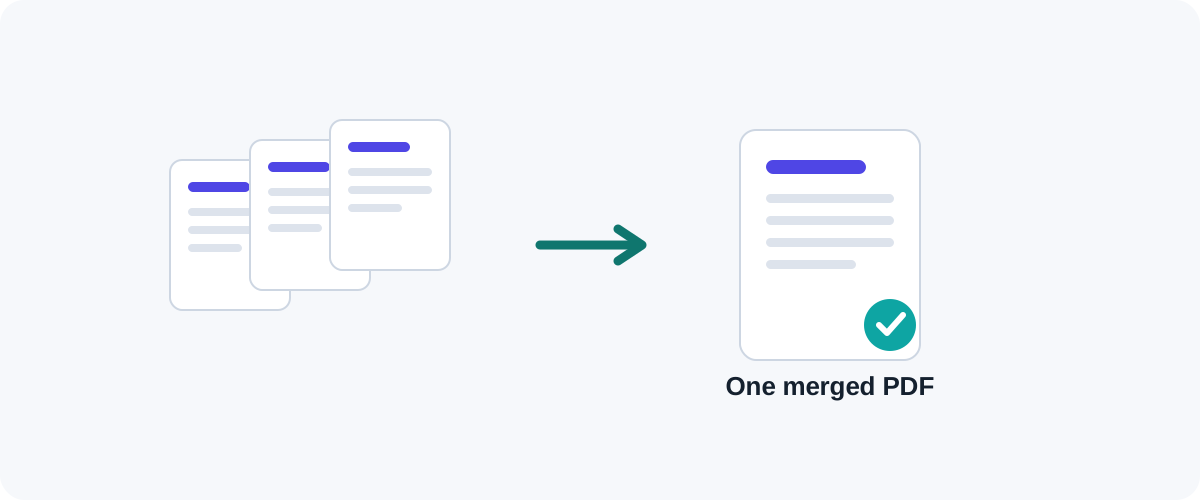
PDF How to Merge PDF Files for Free (Windows, Mac, iPhone & Android)
A practical, tested guide to combining multiple PDFs into one file — online, on your desktop, on your phone, and from the command line — plus how to keep private documents safe.
 PDF
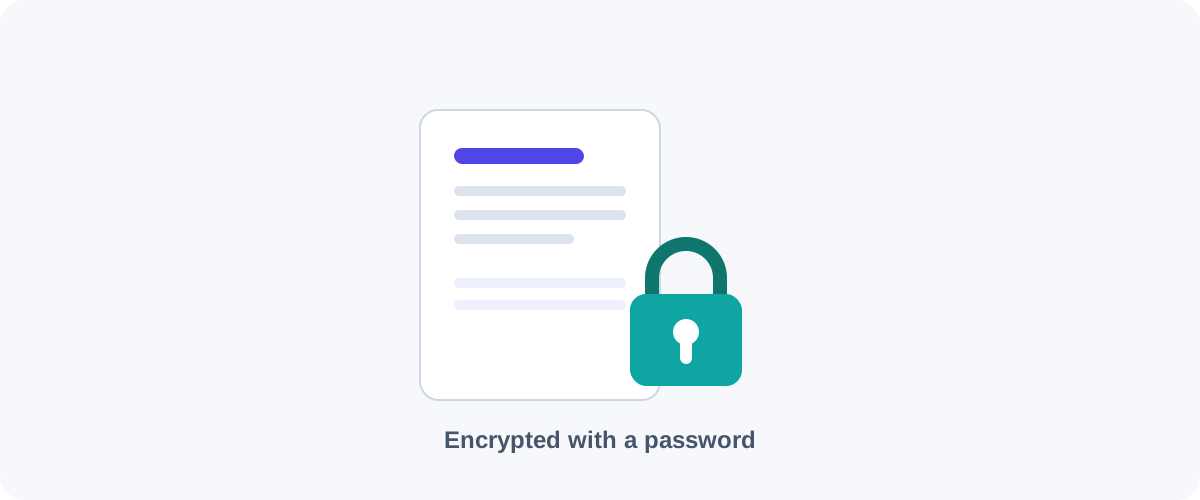
PDF How to Password-Protect a PDF (and Remove a Password You Know)
Add a password and encryption to a PDF for free on Mac, Windows, and the command line — plus how to remove a password from a PDF you own when you no longer need it.
 PDF
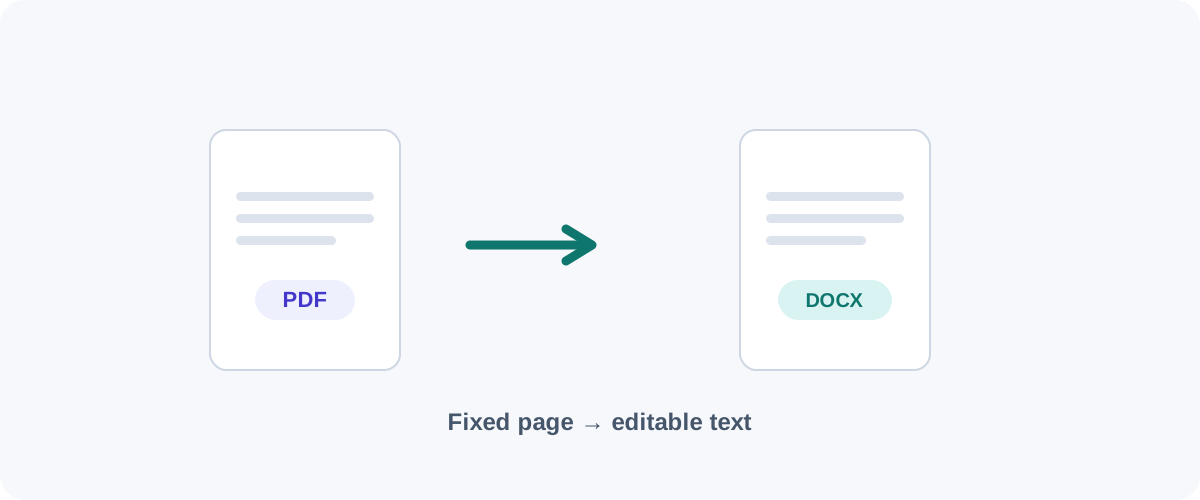
PDF How to Convert a PDF to Word (and Keep the Formatting)
The free ways to turn a PDF into an editable Word document on any device — using Word itself, Google Docs, or LibreOffice — plus why scanned PDFs need a different approach.