How to Merge PDF Files for Free (Windows, Mac, iPhone & Android)
A practical, tested guide to combining multiple PDFs into one file — online, on your desktop, on your phone, and from the command line — plus how to keep private documents safe.

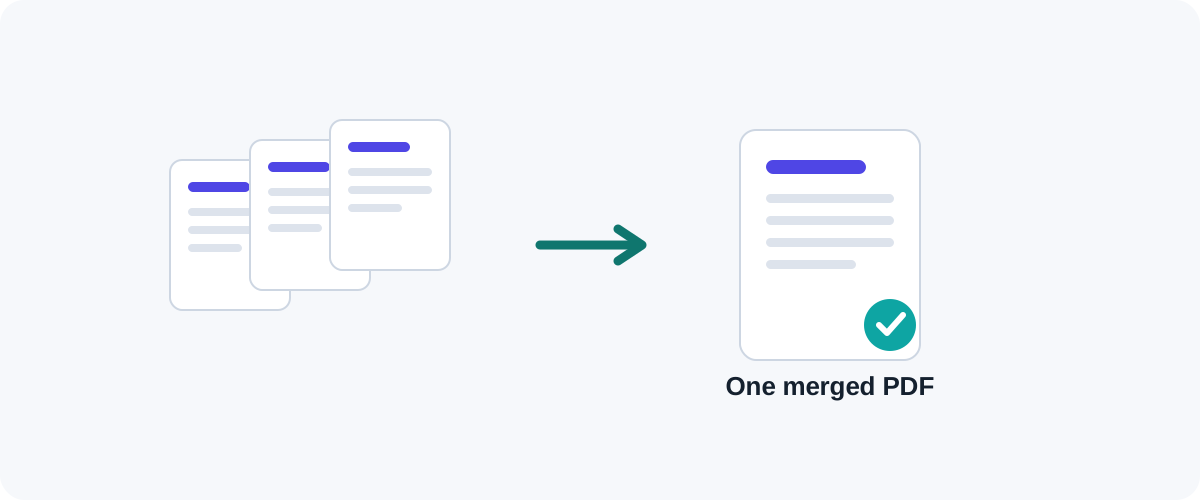
Combining several PDFs into a single document is one of the most common things people need to do with PDFs — stitching together a scanned contract, assembling a report from separate sections, or turning a pile of invoices into one file to email. The good news: you never need to pay for it. I’ve merged thousands of PDFs over the years, and below are the methods I actually reach for, depending on the device in front of me and how sensitive the files are.
The short version
On a Mac, use the built-in Preview app. On Windows, install the free, offline PDFsam Basic or PDF24. On a phone, use a browser-based tool. For sensitive documents, pick a method that works offline or in your browser so nothing gets uploaded.
What “merging” actually does
It helps to know what’s happening under the hood, because it explains a lot of the questions people have. Merging is just concatenation: the tool takes the pages of file A, then the pages of file B, and writes them into one new file in order. It does not re-encode text or re-compress images, so the result is lossless — your merged PDF looks exactly like the originals, just in one place.
That also means merging does not make a file smaller. If your combined PDF is too large to email, that’s a separate job — compression — which I cover in its own guide.
Method 1: Online (works on any device)
The fastest option when you’re not on your own computer is a web-based merge tool. The workflow is the same everywhere:
- Open the tool in your browser.
- Drag in the PDFs you want to combine (or pick them from your files).
- Drag the thumbnails into the order you want.
- Click Merge, then download the single combined PDF.
The big advantage is that it works identically on Windows, Mac, Chromebook, iPhone, and Android — no installation. The thing to watch is privacy: many online tools upload your files to a server to process them. That’s fine for a class handout, less fine for a tax return.
Before you upload anything sensitive
Check that the page is served over HTTPS, and look for a clear statement that files are deleted automatically (good tools delete within an hour or two). Better still, use a tool that processes files in your browser — your documents never leave your device. This is exactly how the Utills merge tool is being built.
Method 2: On a Mac (Preview — free and offline)
macOS has a capable PDF merger built right in, and most people never realize it. Using Preview:
- Open the first PDF in Preview.
- Show the page thumbnails: View → Thumbnails (or press ⌥⌘2).
- Drag a second PDF file from Finder directly into the thumbnail sidebar. Its pages drop in wherever you release them.
- Reorder pages by dragging them in the sidebar.
- Save with File → Export as PDF to write a fresh combined file.
Because everything happens locally, this is my default for anything I wouldn’t want on someone else’s server. One gotcha: if dragging seems to replace rather than add, make sure you’re dropping between existing thumbnails, not on top of one.
Method 3: On Windows (PDFsam Basic or PDF24)
Windows doesn’t include a built-in way to merge PDFs — the default viewer and “Microsoft Print to PDF” can’t combine multiple files. I use one of two free, offline programs:
- PDFsam Basic — open source, no upload, no nonsense. Choose Merge, add your files, drag to reorder, and run. It’s the one I recommend for privacy.
- PDF24 Creator — a free toolkit with a friendly drag-and-drop merge screen and lots of other PDF utilities bundled in.
Both run entirely on your machine, so they handle confidential files and large batches without sending anything online.
Method 4: On a phone
On a phone, a browser-based tool is the most dependable path and behaves the same on iPhone and Android. If you’d rather stay native:
- iPhone: You can import PDFs into the Books app, or build a one-tap Shortcut using the “Make PDF” action. The Files app’s “Create PDF” is designed for combining images, not existing PDFs, so don’t be surprised when it doesn’t merge them.
- Android: Most built-in file managers won’t merge PDFs, so a browser tool or a reputable free app is the way to go.
Method 5: Command line (for power users)
If you live in a terminal, this is the fastest method of all and trivially scriptable. Two reliable, free options:
# poppler-utils — order is exactly as listed
pdfunite part1.pdf part2.pdf part3.pdf merged.pdf

# qpdf — flexible page selection, also great for splitting
qpdf --empty --pages a.pdf b.pdf -- merged.pdf
Both are lossless and run offline. I keep pdfunite aliased because batch-merging a folder of files becomes a one-line loop.
Choosing the right method
| Situation | Best choice |
|---|---|
| On someone else’s computer | Browser-based online tool |
| Sensitive / confidential files | Preview (Mac), PDFsam (Windows), or in-browser tool |
| On a phone | Browser tool in Safari/Chrome |
| Dozens of files / repeatable | Command line (pdfunite, qpdf) |
Whatever you choose, the principle is the same: reorder first, merge once, and keep private files off other people’s servers. Once that clicks, combining PDFs goes from a chore to a ten-second job.
Frequently asked questions
Is it safe to merge PDFs online?
For everyday documents it's fine. For anything sensitive — contracts, IDs, medical or financial records — prefer a method that works offline (like Preview on Mac or PDFsam on Windows) or a browser-based tool that processes files on your device without uploading them. Always check that a site uses HTTPS and states how long it keeps your files.
Does merging PDFs reduce their quality?
No. Merging simply places the pages of each file one after another, so text stays selectable and images keep their original resolution. Quality only drops if you separately run a "compress" step, which is a different operation.
How do I change the page order before merging?
Almost every merge tool lets you drag the files (or individual pages) into the order you want before you combine them. Reorder first, preview if you can, then merge — it's much easier than fixing the order afterward.
How do I merge PDFs on an iPhone or Android phone?
The most reliable cross-platform option is a browser-based merge tool opened in Safari or Chrome. On a Mac-linked iPhone you can also use the Books app or a Shortcut, but a good in-browser tool works the same on both iPhone and Android with no install.
Is there a limit on how many PDFs I can merge?
Desktop apps are limited only by your computer's memory, so you can merge dozens of files. Online tools usually cap the number of files and total size on their free tier — typically somewhere between 20 and 100 MB.
Related guides
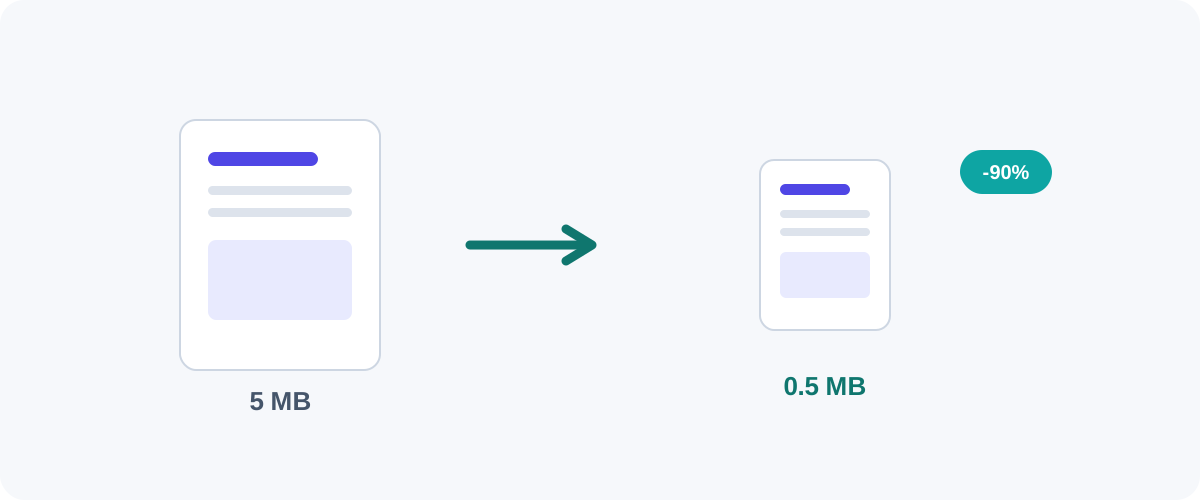 PDF
PDF How to Compress a PDF Without Losing Quality
Why PDFs get huge, what compression actually changes, and the best free ways to shrink a PDF on Mac, Windows, and online — without turning your text to mush.
 PDF
PDF How to Password-Protect a PDF (and Remove a Password You Know)
Add a password and encryption to a PDF for free on Mac, Windows, and the command line — plus how to remove a password from a PDF you own when you no longer need it.
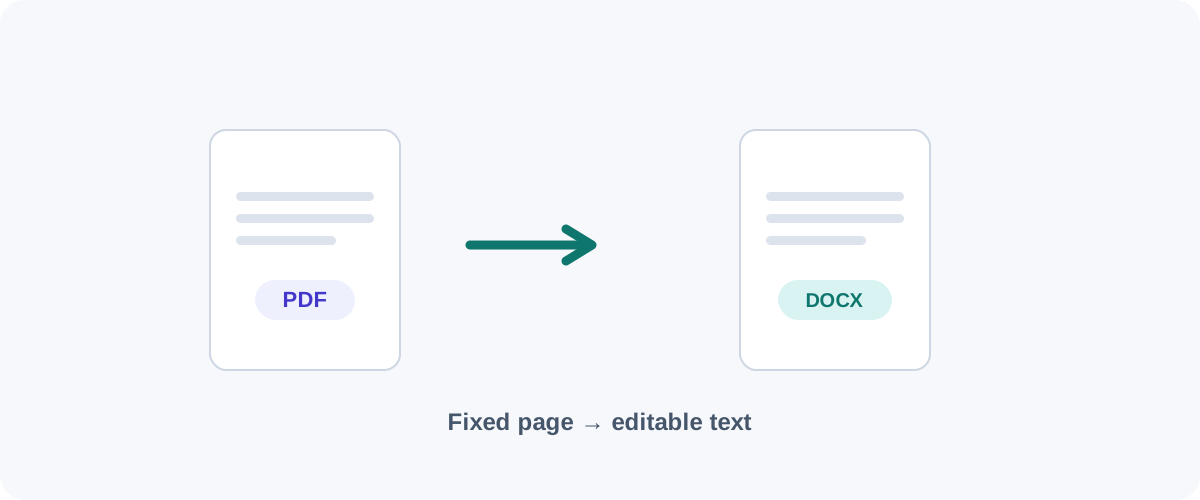 PDF
PDF How to Convert a PDF to Word (and Keep the Formatting)
The free ways to turn a PDF into an editable Word document on any device — using Word itself, Google Docs, or LibreOffice — plus why scanned PDFs need a different approach.