How to Split a PDF or Extract Specific Pages (Free)
Pull single pages out of a PDF, split one big file into several, or delete the pages you don't need — on Mac, Windows, phone, and the command line, no paid software required.

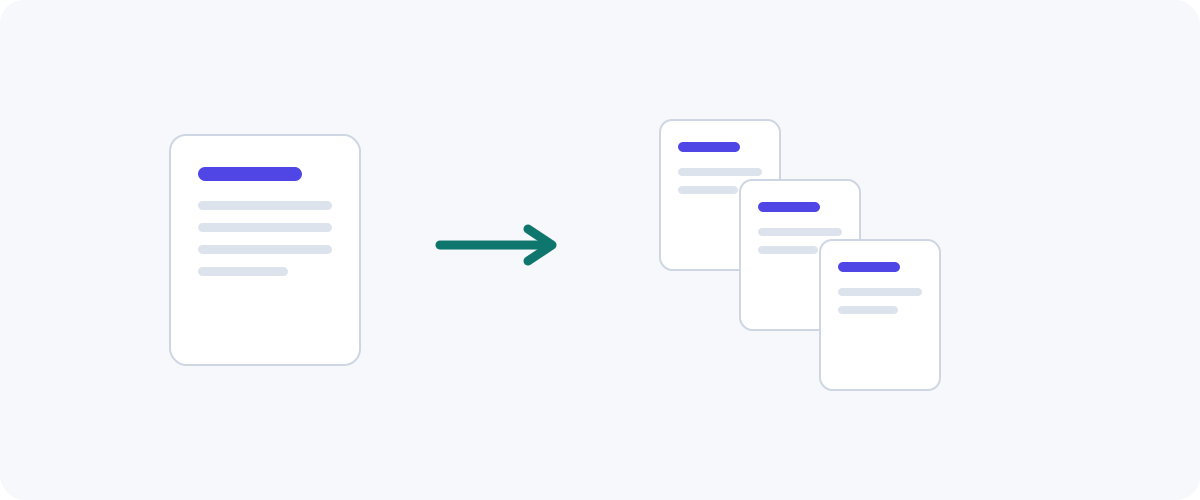
Splitting a PDF is the mirror image of merging one: instead of combining files, you’re pulling pages apart. Maybe you need just the signature page out of a long contract, or you want to break a scanned booklet into chapters. Whatever the reason, you don’t need paid software — here are the free methods I actually use.
Splitting vs extracting vs deleting
Split = one PDF becomes several files. Extract = save specific pages as a new file. Delete = remove pages and keep the rest. The tools below handle all three; pick the verb that matches your goal.
Method 1: On a Mac (Preview)
Preview makes page surgery easy and keeps everything offline:
- Open the PDF and show thumbnails (View → Thumbnails, or ⌥⌘2).
- To extract pages: select the thumbnails you want (⌘-click for several), then drag them to your Desktop — macOS drops them out as a new PDF. Or use File → Print, set the page range, and “Save as PDF.”
- To delete pages: select the unwanted thumbnails, press Delete, then File → Export to save a fresh copy.
This is my go-to for anything sensitive, since the file never leaves the Mac.
Method 2: Print to PDF (works almost everywhere)
A clever trick that needs no special software, on Windows, Mac, or mobile:
- Open the PDF and choose Print.
- Set the Pages range to exactly what you want (e.g.
4-6). - For the printer, choose Save as PDF (or “Microsoft Print to PDF” on Windows).
- Save.
You now have a new PDF containing only that range. It’s not elegant for splitting into many files at once, but for “just give me pages 4 to 6” it’s the fastest universal method.
Method 3: Free desktop apps (Windows)
Since Windows has no built-in PDF editor, a free offline app fills the gap:
- PDFsam Basic — its Split mode breaks a file by page count, by bookmarks, or at specific page numbers. Open source and offline.
- PDF24 Creator — friendly drag-and-drop split and extract screens.
Both run entirely on your machine, so they’re safe for confidential files and handle big documents without complaint.
Method 4: Command line (precise and scriptable)
For exact control or batch jobs, qpdf is excellent and free:
# Extract pages 4 to 6 into a new file
qpdf input.pdf --pages input.pdf 4-6 -- pages-4-6.pdf

# Split every page into its own file
qpdf --split-pages input.pdf out-%d.pdf
pdftk and poppler’s pdfseparate do similar jobs. These are lossless and offline, and they turn a repetitive task into a one-liner.
Method 5: Online (any device)
A browser tool is the simplest option on a phone or a computer that isn’t yours: upload, choose the pages or split points, download. Same privacy caveat as always.
Keep private pages private
That contract you’re extracting a page from is exactly the kind of file you shouldn’t upload to a random site. Prefer Preview, a free desktop app, or an in-browser tool for anything confidential.
Choosing the right method
| Goal | Easiest free method |
|---|---|
| Grab one page range | Print to PDF, or Preview |
| Break into many files | PDFsam (Windows), qpdf --split-pages |
| Delete a few pages | Preview thumbnails |
| On a phone | Browser tool or print-to-PDF |
| Repeatable / batch | qpdf on the command line |
Once you’ve split or extracted what you need, you might want to recombine a few pages later — that’s just merging in reverse. Between the two, you can reshape any PDF into exactly the document you want, for free.
Frequently asked questions
What's the difference between splitting and extracting?
Splitting breaks one PDF into several separate files (for example, turning a 30-page file into three 10-page files). Extracting pulls specific pages out into a new document (for example, saving just pages 4–6). Most tools do both; the steps are nearly identical.
Does splitting a PDF reduce quality?
No. Splitting and extracting copy pages exactly as they are, so text stays selectable and images keep their resolution. It's a lossless operation.
Can I split a PDF on my phone?
Yes. On a Mac-linked iPhone you can use the Books app or a Shortcut, but the most reliable cross-platform option is a browser-based tool that works the same on iPhone and Android. The print-to-PDF trick below also works in mobile browsers.
How do I just delete a few pages instead?
Open the PDF in a viewer that shows page thumbnails (Preview on Mac, or a browser PDF viewer), select the unwanted pages, delete them, and save a new copy. The remaining pages stay untouched.
Related guides
 PDF
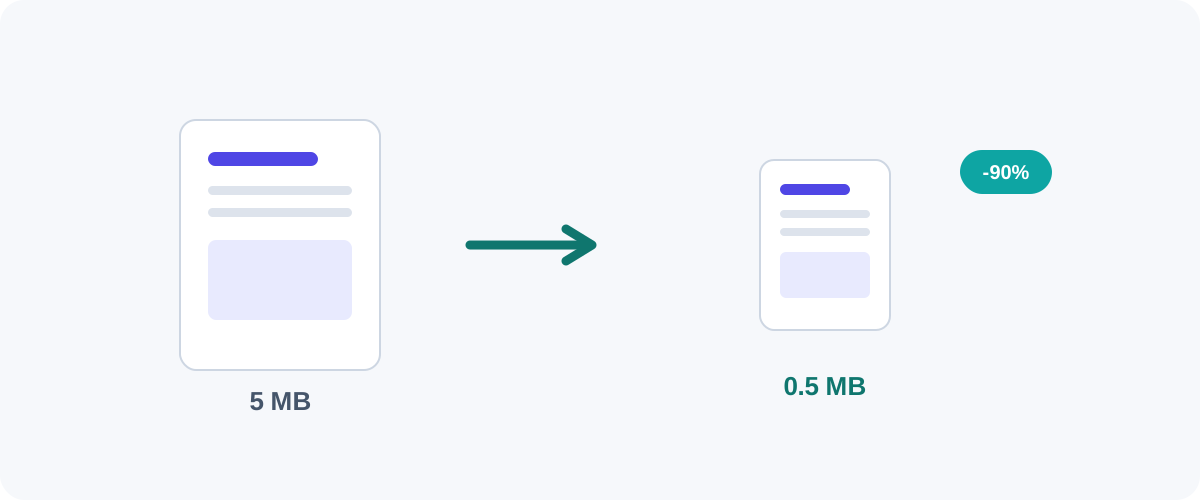
PDF How to Compress a PDF Without Losing Quality
Why PDFs get huge, what compression actually changes, and the best free ways to shrink a PDF on Mac, Windows, and online — without turning your text to mush.
 PDF
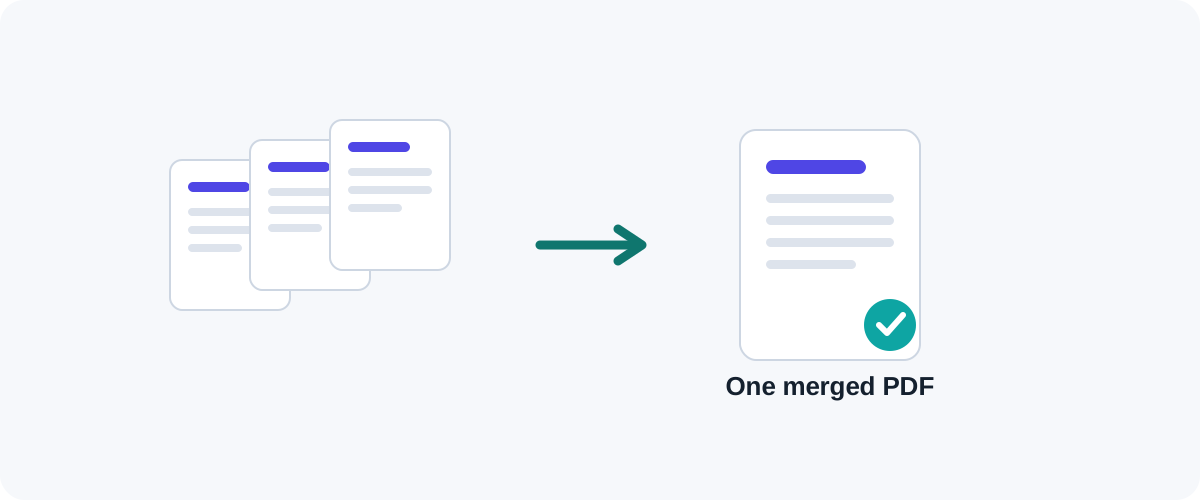
PDF How to Merge PDF Files for Free (Windows, Mac, iPhone & Android)
A practical, tested guide to combining multiple PDFs into one file — online, on your desktop, on your phone, and from the command line — plus how to keep private documents safe.
 PDF
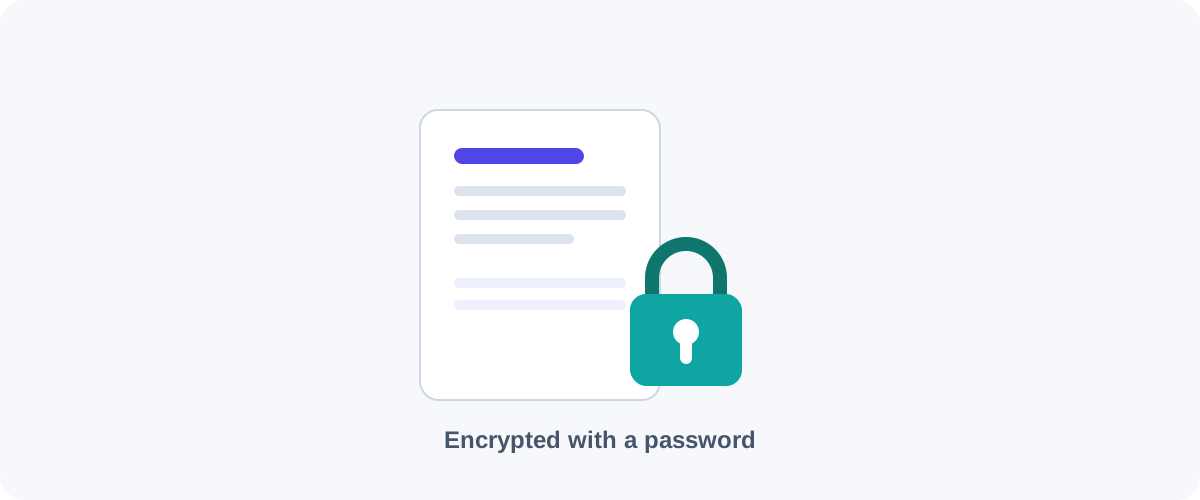
PDF How to Password-Protect a PDF (and Remove a Password You Know)
Add a password and encryption to a PDF for free on Mac, Windows, and the command line — plus how to remove a password from a PDF you own when you no longer need it.