How to Convert HEIC to JPG (iPhone Photos to a Universal Format)
Why iPhone photos arrive as HEIC, how to convert them to JPG on iPhone, Mac, and Windows, and how to make your phone shoot JPG from the start.

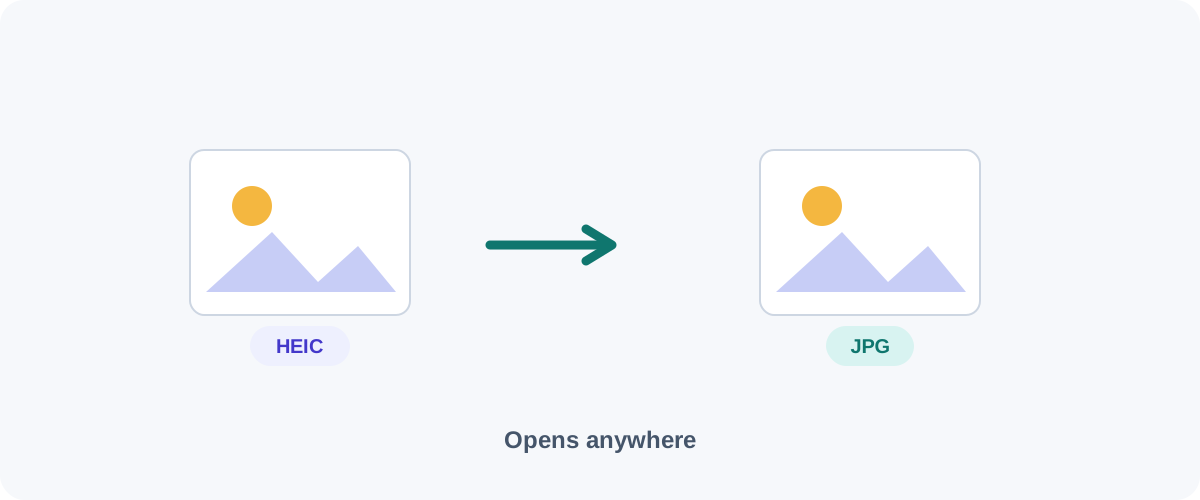
You AirDrop a photo to a friend with an Android phone, or upload one to an older website, and it won’t open. The culprit is HEIC — the format iPhones use by default. It’s efficient, but not universally supported, so converting to JPG is often the quick fix. Here’s every free way to do it, plus how to avoid the problem entirely.
Why HEIC exists
Apple adopted HEIC because it stores a photo at about half the size of an equivalent JPEG. That’s great for your storage and iCloud. The trade-off is reach: plenty of apps, websites, and Windows machines still expect JPG. So the goal isn’t to “fix” HEIC — it’s to hand other people a format they can definitely open.
Convert on iPhone (no app needed)
The simplest trick: iOS often converts automatically when you share.
- Email or AirDrop to a non-Apple device frequently delivers a JPG.
- Copy then paste: In Photos, tap Share → Copy Photo, then paste into an app like Files or a message — the pasted copy is usually JPG.
- Files app: Save the photo into Files; you can convert by duplicating into a JPG-friendly flow or using a one-tap Shortcut with the “Convert Image” action (set format to JPEG). A Shortcut is the most reliable native method if you do this often.
Convert on a Mac (Preview, built-in)
This is my favourite because it’s offline and handles batches:
- Select the HEIC files in Finder and open them in Preview.
- Select all in the sidebar (⌘A).
- File → Export (or Tools → Convert for batches), choose JPEG, set quality, and save.
Or use the one-line Terminal command, which is perfect for bulk conversion:
sips -s format jpeg photo.heic --out photo.jpg
Convert on Windows
- Install Microsoft’s free HEIF Image Extensions from the Microsoft Store if HEIC files won’t open.
- Open the photo in Photos or Paint.
- Choose Save as (Paint) or the export option and pick JPEG.
For lots of files, a free batch tool like IrfanView, or an in-browser converter, saves time.
Convert in the browser (private)
Some web tools decode HEIC in your browser using libheif, so the photo never uploads. That’s the privacy-friendly online option — useful on a Chromebook or a PC where you can’t install anything.
Family photos are personal
HEIC files are usually personal photos. If you use an online converter, prefer one that processes images on your device, or just convert offline with Preview/Photos.
Stop the problem at the source
If you keep needing JPGs, change the setting once:
- iPhone: Settings → Camera → Formats → Most Compatible. Now the camera shoots JPG.
You’ll use a little more storage, but every photo will open anywhere with no conversion step.
Keep the originals
If you switch to “Most Compatible,” only future photos change. Existing HEIC shots stay as they are, so convert those as needed — and keep a copy of the originals if you care about saving space later.
Quick reference
| Device | Fastest free method |
|---|---|
| iPhone | Share/Copy, or a “Convert Image” Shortcut |
| Mac | Preview export, or sips in Terminal |
| Windows | Photos/Paint → Save as JPEG (+ HEIF extension) |
| Chromebook / locked-down PC | In-browser converter |
Convert when you need to share widely, switch your camera to JPG if compatibility matters more than storage, and keep personal photos off random upload sites. Once you want those JPGs smaller, see how to compress images.
Frequently asked questions
Why are my iPhone photos in HEIC format?
Apple switched to HEIC (a form of HEIF) because it stores photos at roughly half the size of JPEG with the same quality. The downside is compatibility — many websites, older Windows PCs, and some apps can't open HEIC directly, which is why you often need a JPG.
Does converting HEIC to JPG lose quality?
There's a small, usually invisible quality change because JPG is a lossy format and you're re-encoding. At high quality it's not noticeable. The JPG will, however, be a larger file than the original HEIC for the same image.
How do I stop my iPhone making HEIC files at all?
Go to Settings → Camera → Formats and choose "Most Compatible." Your iPhone will then shoot JPG instead of HEIC. You keep a bit more compatibility at the cost of larger files.
Can I convert HEIC to JPG on Windows?
Yes. Recent Windows versions can open HEIC (sometimes after installing Microsoft's free HEIF extension) and you can then "Save as" JPG in Paint or Photos. A browser-based or offline converter also works.
Related guides
 Image
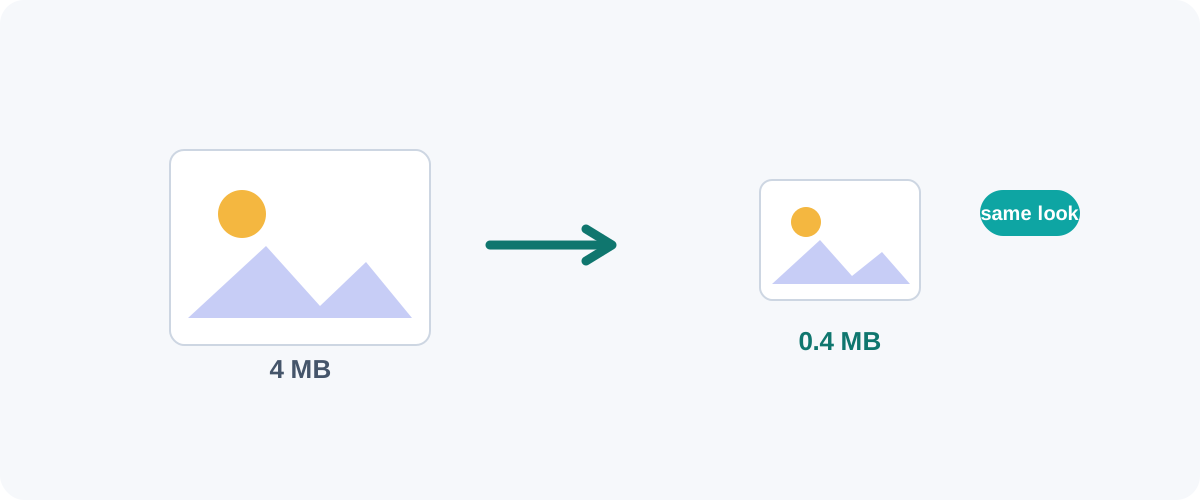
Image How to Compress Images Without Losing Quality
The real reasons image files get big, the difference between lossy and lossless, and the best free ways to shrink JPGs and PNGs on Mac, Windows, and in your browser.
 Image
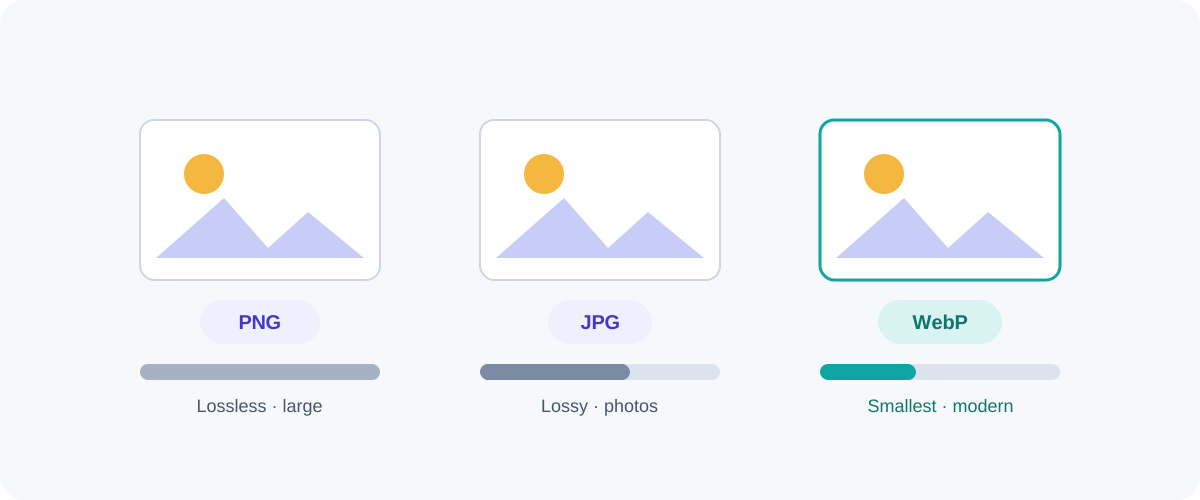
Image PNG vs JPG vs WebP: Which Image Format Should You Use?
A plain-English comparison of the three formats you meet every day — what each is good at, where each falls down, and a simple rule for always picking the right one.
 Image
Image How to Reduce Image Size to Speed Up Your Website
Images are the biggest reason web pages feel slow. Here's a practical checklist — right dimensions, modern formats, compression, lazy-loading, and no layout shift — to make yours fast.