PNG vs JPG vs WebP: Which Image Format Should You Use?
A plain-English comparison of the three formats you meet every day — what each is good at, where each falls down, and a simple rule for always picking the right one.

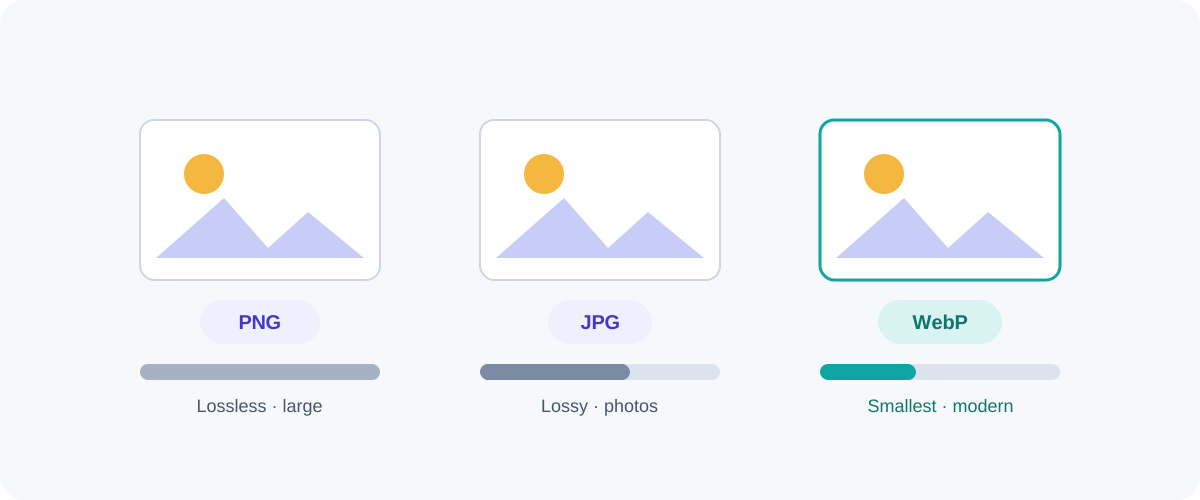
JPG, PNG, WebP — you bump into these three constantly, and choosing wrong means either bloated files or fuzzy images. The good news is the decision is genuinely simple once you know what each format is built for. Here’s the comparison I wish someone had given me early on.
The one-line summary
- JPG (JPEG): built for photographs. Small files, no transparency, lossy.
- PNG: built for graphics and transparency. Perfect edges, lossless, larger files.
- WebP: the modern all-rounder. Does what both do, usually smaller.
JPG — the photo workhorse
JPG uses lossy compression tuned for the way our eyes see photos. It throws away subtle detail to make files small, which is ideal for the smooth gradients of real-world images — skies, skin, landscapes.
- Great for: photographs, complex real-world images.
- Weak at: sharp edges and text (it smears them into “artifacts”), and it has no transparency.
- Watch out: every time you re-save a JPG it loses a little more. Edit from an original, export to JPG once.
PNG — crisp edges and transparency
PNG is lossless, so it preserves every pixel exactly. It also supports a transparent background. That makes it the right choice whenever clean edges matter.
- Great for: logos, icons, screenshots, line art, anything with text or transparency.
- Weak at: photographs — a PNG photo is often several times larger than the JPG equivalent for no visible benefit.
- Bonus: because it’s lossless, it’s a good working/editing format.
WebP — the modern default
WebP, developed by Google, does both lossy and lossless compression, supports transparency and animation, and typically produces smaller files than JPG or PNG at equivalent quality. Browser support is now effectively universal.
- Great for: websites — smaller pages, faster loads, supports transparency.
- Weak at: compatibility with some older desktop software, which matters for files people download and open in other apps.
AVIF — the next step
There’s also AVIF, which compresses even better than WebP, especially for photos. Support is strong in modern browsers. For cutting-edge website performance it’s worth testing, but WebP remains the safer everyday default.
Side by side
| JPG | PNG | WebP | |
|---|---|---|---|
| Compression | Lossy | Lossless | Lossy + lossless |
| Transparency | No | Yes | Yes |
| Best for | Photos | Graphics, text, logos | Almost everything (web) |
| File size | Small | Large (for photos) | Smallest, usually |
| Compatibility | Universal | Universal | Excellent (modern) |
How to actually decide
The 10-second decision
- Is it a photo? → WebP if it’s for the web, JPG if it needs to open anywhere.
- Does it have transparency, text, or sharp edges? → PNG, or WebP for the web.
- Building a website and want it fast? → WebP (or AVIF) for nearly everything.
For most websites I export photos as WebP with a JPG fallback only if I expect ancient browsers, and I keep logos/icons as PNG or WebP. For files I’m sending to other people to open in random software, I lean on the universally-safe JPG and PNG.
Once you’ve picked a format, the next question is usually size — see how to compress images and, for sites specifically, reduce image size to speed up your site.
Frequently asked questions
What's the simplest rule for choosing a format?
Photographs → JPG or WebP. Graphics, logos, screenshots, or anything needing transparency → PNG or WebP. WebP is the modern all-rounder that usually wins on file size, so if your audience's browsers support it (virtually all do now), it's a strong default for both.
Is WebP better than JPG and PNG?
Usually, on size. WebP typically produces smaller files than JPG at the same quality and smaller than PNG for graphics, and it supports transparency and animation. Its only real drawback is that very old software may not open it, which matters more for downloads than for websites.
When should I still use PNG?
When you need lossless quality or transparency and want maximum compatibility — logos, icons, screenshots with text, or images that will be edited repeatedly. PNG never adds compression artifacts, so text and sharp edges stay perfectly clean.
Does converting JPG to PNG improve quality?
No. Converting a JPG to PNG can't recover detail the JPG already discarded — you just get a larger file of the same image. Only start from PNG (or another lossless source) if you need lossless quality.
Related guides
 Image
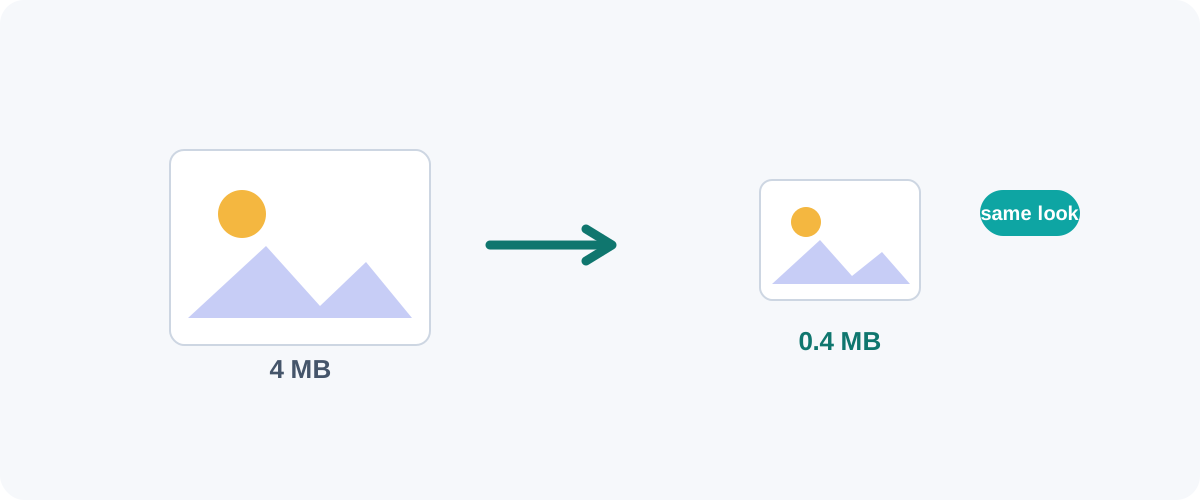
Image How to Compress Images Without Losing Quality
The real reasons image files get big, the difference between lossy and lossless, and the best free ways to shrink JPGs and PNGs on Mac, Windows, and in your browser.
 Image
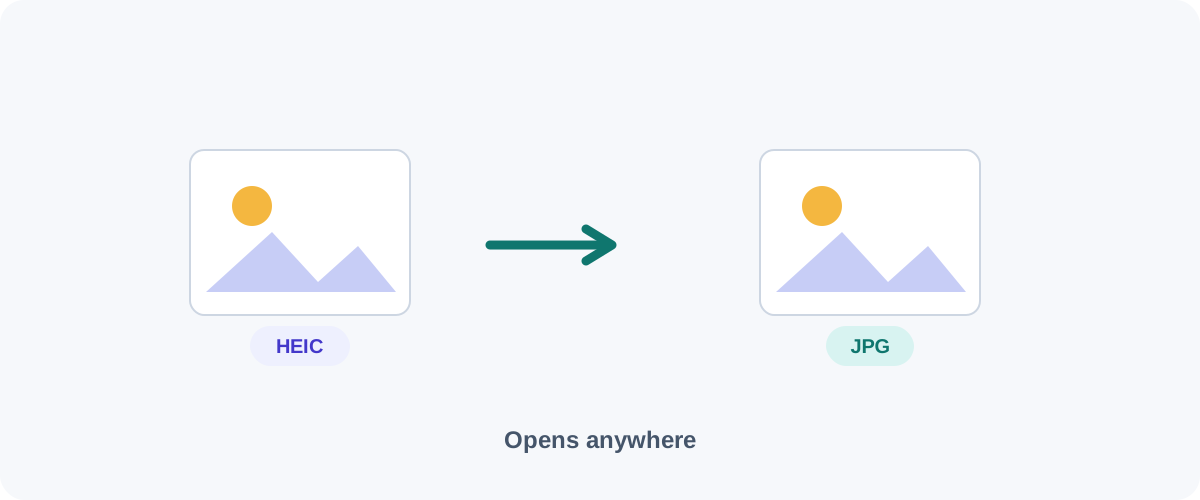
Image How to Convert HEIC to JPG (iPhone Photos to a Universal Format)
Why iPhone photos arrive as HEIC, how to convert them to JPG on iPhone, Mac, and Windows, and how to make your phone shoot JPG from the start.
 Image
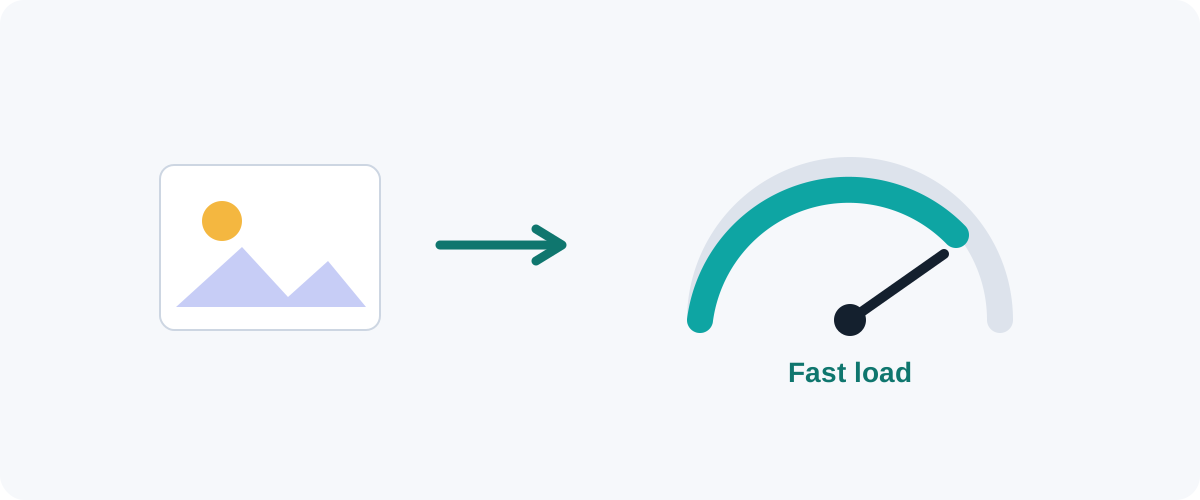
Image How to Reduce Image Size to Speed Up Your Website
Images are the biggest reason web pages feel slow. Here's a practical checklist — right dimensions, modern formats, compression, lazy-loading, and no layout shift — to make yours fast.